Blog
Comment inclure un compte à rebours dans Gmail ?
Gmail est un service de messagerie gratuit de Google. À bien des égards, Gmail est comme n'importe quel autre e-mail. Vous pouvez envoyer et recevoir des e-mails, bloquer le spam, créer un carnet d'adresses et effectuer d'autres tâches de base liées aux e-mails. En même temps, Gmail possède un certain nombre de fonctionnalités uniques qui en font l'un des services de messagerie les plus populaires au monde.
Vous devez créer un compte Google pour avoir votre messagerie Gmail. Car Gmail est l'un des services que Google fournit aux utilisateurs enregistrés. Un compte est créé gratuitement. Le processus de création est simple, et le nom saisi par l'utilisateur fera partie de votre adresse Gmail.
Pour ajouter un compte à rebours à Gmail, suivez ces étapes :
-
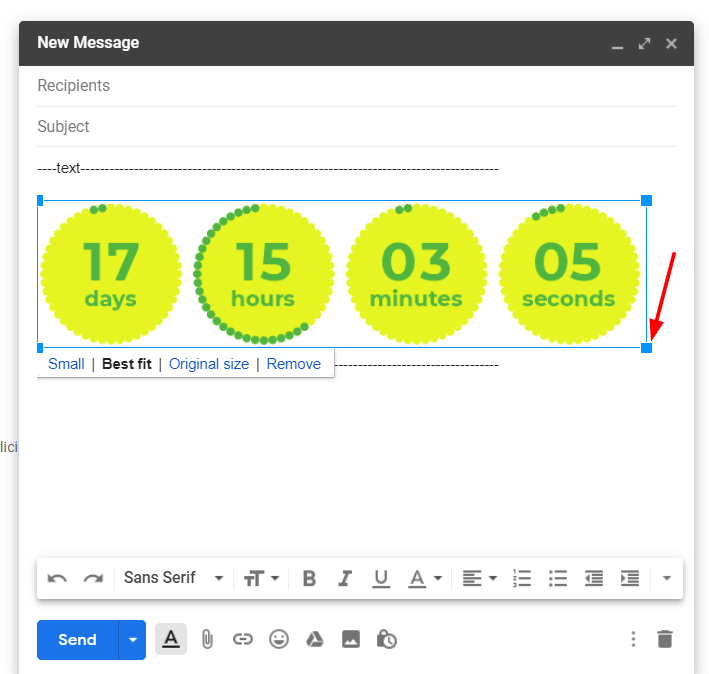
Dans l'éditeur de lettre, cliquez sur l'endroit où vous souhaitez insérer le compteur.
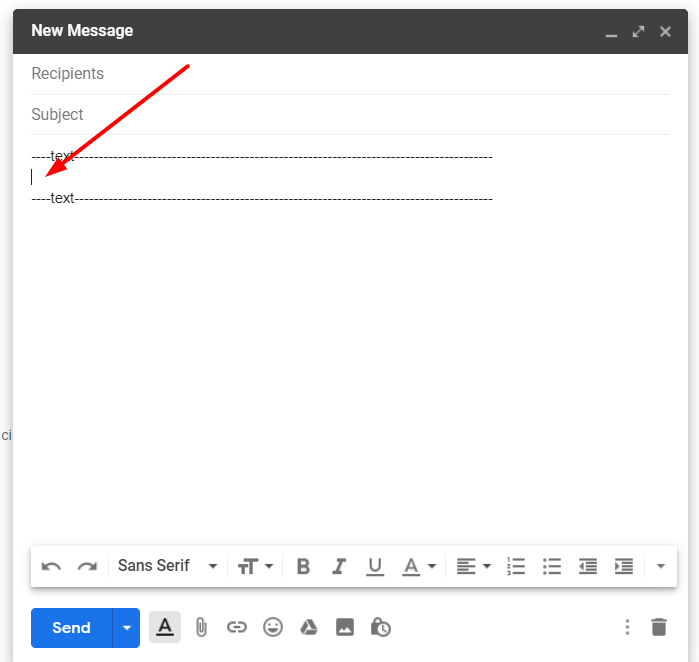
- Cliquez sur "Insérer une photo".
-
Sélectionnez "Adresse Web (URL)".
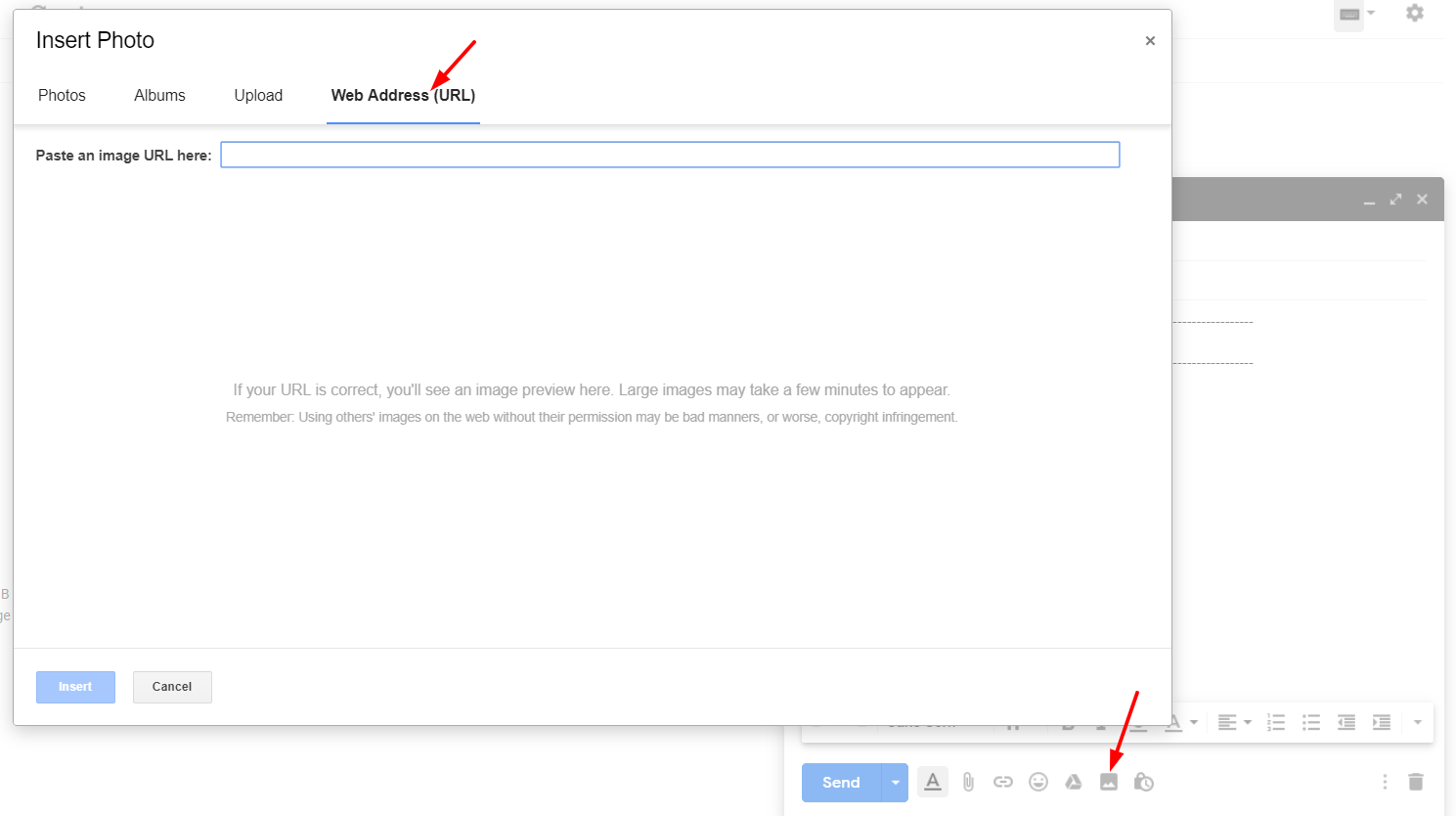
-
Dans le compte PromoFeatures, copiez l'URL du compteur créé.
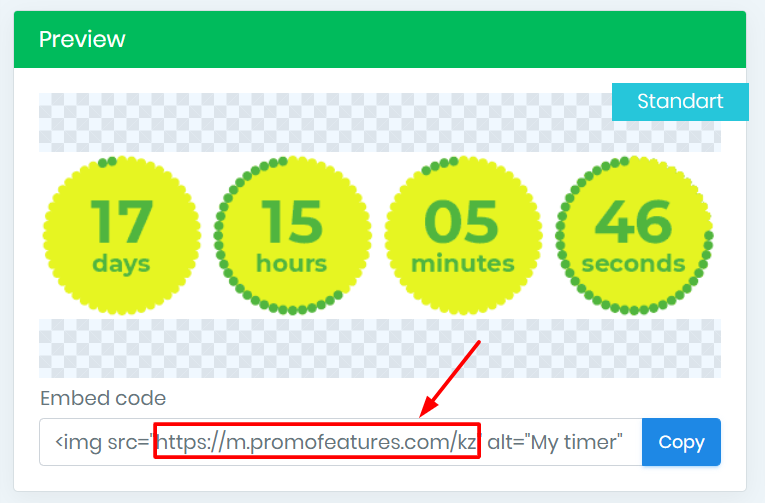
-
Insérez cette URL dans le champ "Coller une URL d'image ici".
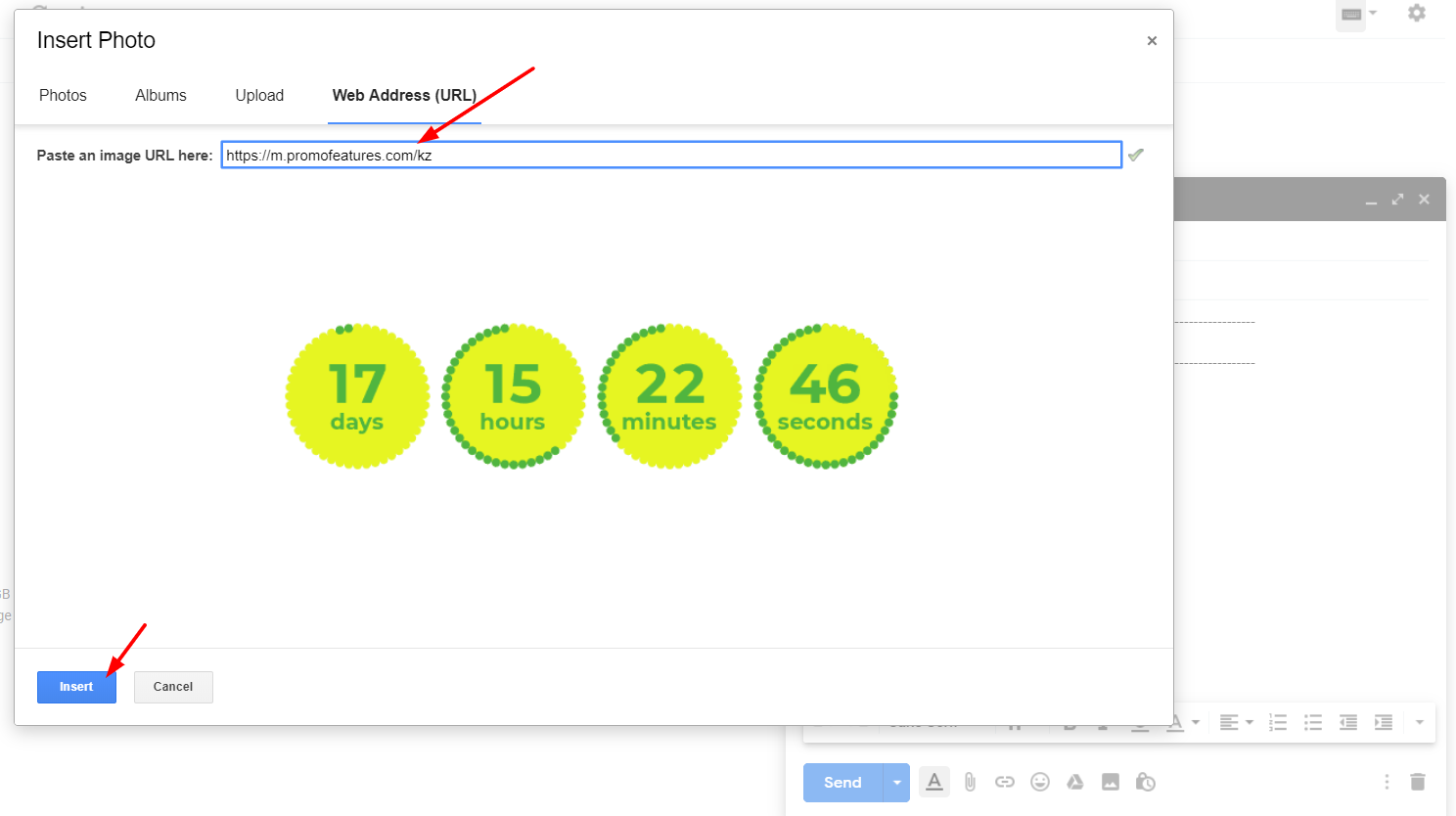
- Cliquez sur le bouton "Insérer".
Une fois le minuteur ajouté, vous pouvez le redimensionner
Regardez la vidéo : Comment ajouter des compteurs à rebours dans Gmail ?



Comments

Jelte Zijsling December 3, 2021
when I copy the link in Gmail it will count with the right time. But when I sent it to another mailaddress and the mail will be opened it starts with the wrong time (time of save). Do I do something wrong?
PromoFeatures December 3, 2021
Hi Jelte, It looks like your timer was cached, as if you saved it to your computer as a gif image and then uploaded it to a email letter. The timer will work correctly only if you add it via the "Web Address (URL)" field, in this case the timer will be loaded from our server and display the correct time. You can also forward this email letter to our mail support@promofeatures.com for an accurate analysis.
Katie Nguyen July 11, 2021
Hello, is the countdown timer will be counted base on real-time to the date of the event? or it'll be counted by the date of open email
PromoFeatures July 12, 2021
Timers for Gmail will only work until the end date (when creating a timer, you need to specify the date and time when the countdown timer will stop) in real time. We also support such a function, in which the timer is triggered by the date the message was opened, this type of timer is called transactional. Unfortunately, Gmail does not support transaction timers.
Francis Welch August 17, 2019
Thank you, your post is very useful. How to add any html to gmail, not just countdown counters?
PromoFeatures August 17, 2019
You can open html in a browser and copy the whole page and paste it into the editor, but we recommend using Chrome browser extensions called "HTML Inserter for Gmail" or "Insert Text HTML Snippets in Gmail".
To leave a comment, please log in.