Blog
Come includere un orologio countdown in Gmail?
Gmail è un servizio email gratuito di Google. In molti modi, Gmail è simile a qualsiasi altra email. Puoi inviare e ricevere email, bloccare lo spam, creare una rubrica e svolgere altre attività di base. Allo stesso tempo, Gmail ha una serie di funzionalità uniche che lo rendono uno dei servizi email più popolari al mondo.
Per avere la tua email Gmail devi creare un account Google, poiché Gmail è uno dei servizi offerti da Google agli utenti registrati. La creazione dell'account è gratuita. Il processo è semplice e il nome scelto dall'utente farà parte del tuo indirizzo Gmail.
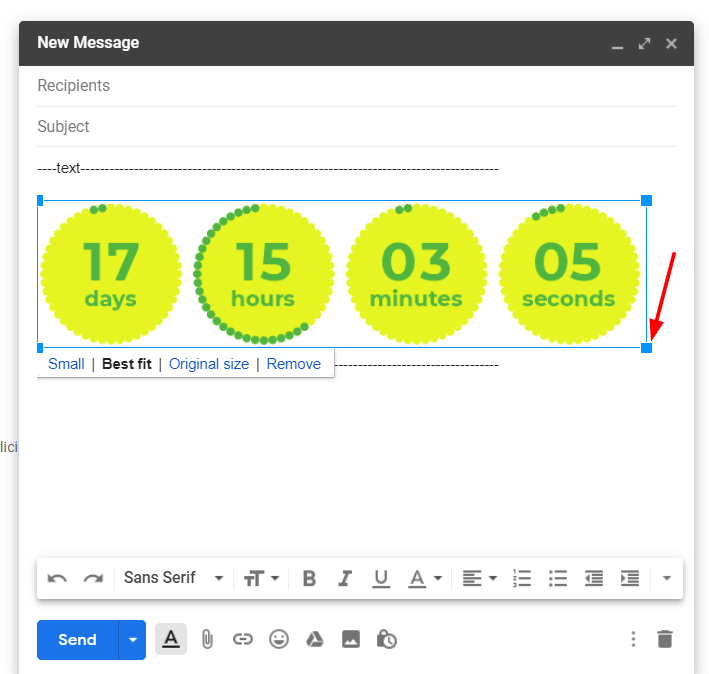
Per aggiungere un countdown timer in Gmail, segui questi passaggi:
-
Nell'editor lettere, fai clic nel punto dove vuoi inserire il timer.
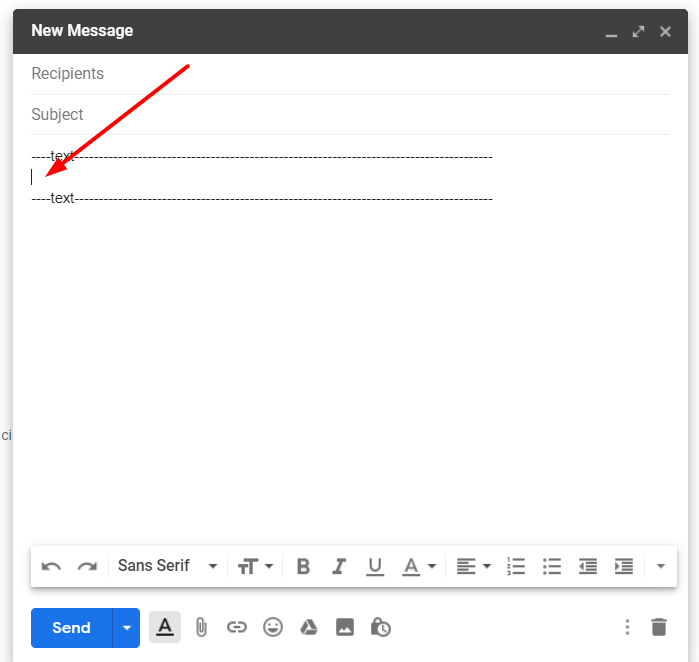
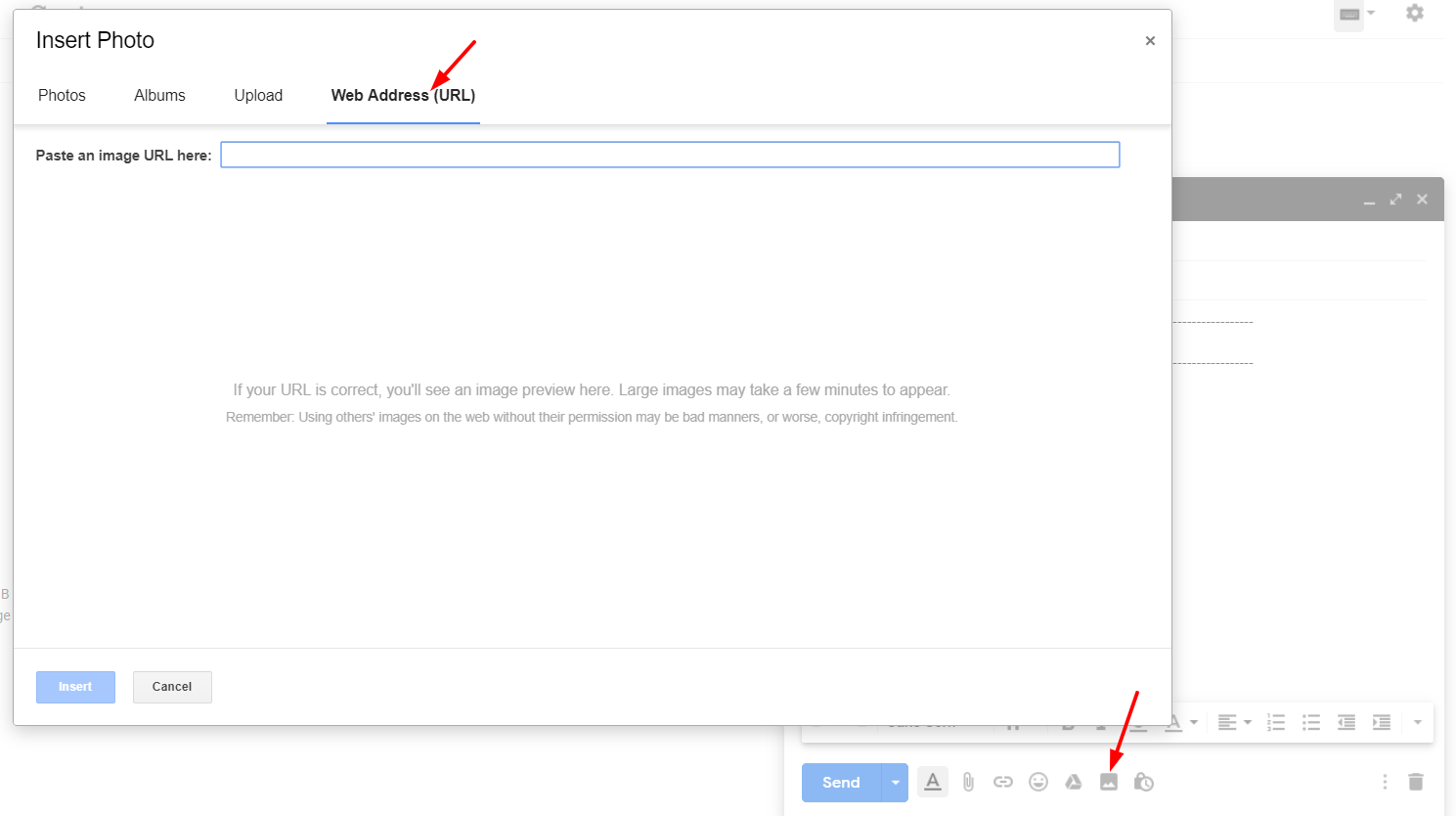
- Fai clic su "Inserisci foto".
-
Seleziona "Indirizzo web (URL)".
-
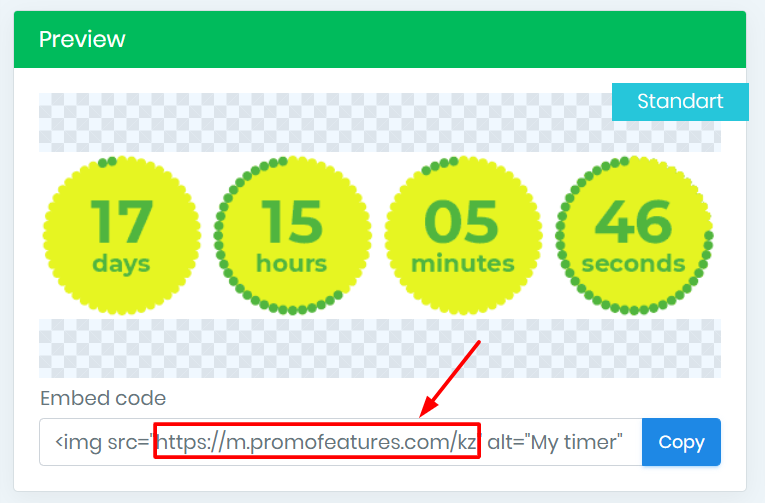
Nell'account PromoFeatures, copia l'URL del timer creato.
-
Inserisci questo URL nel campo "Incolla un URL immagine qui".
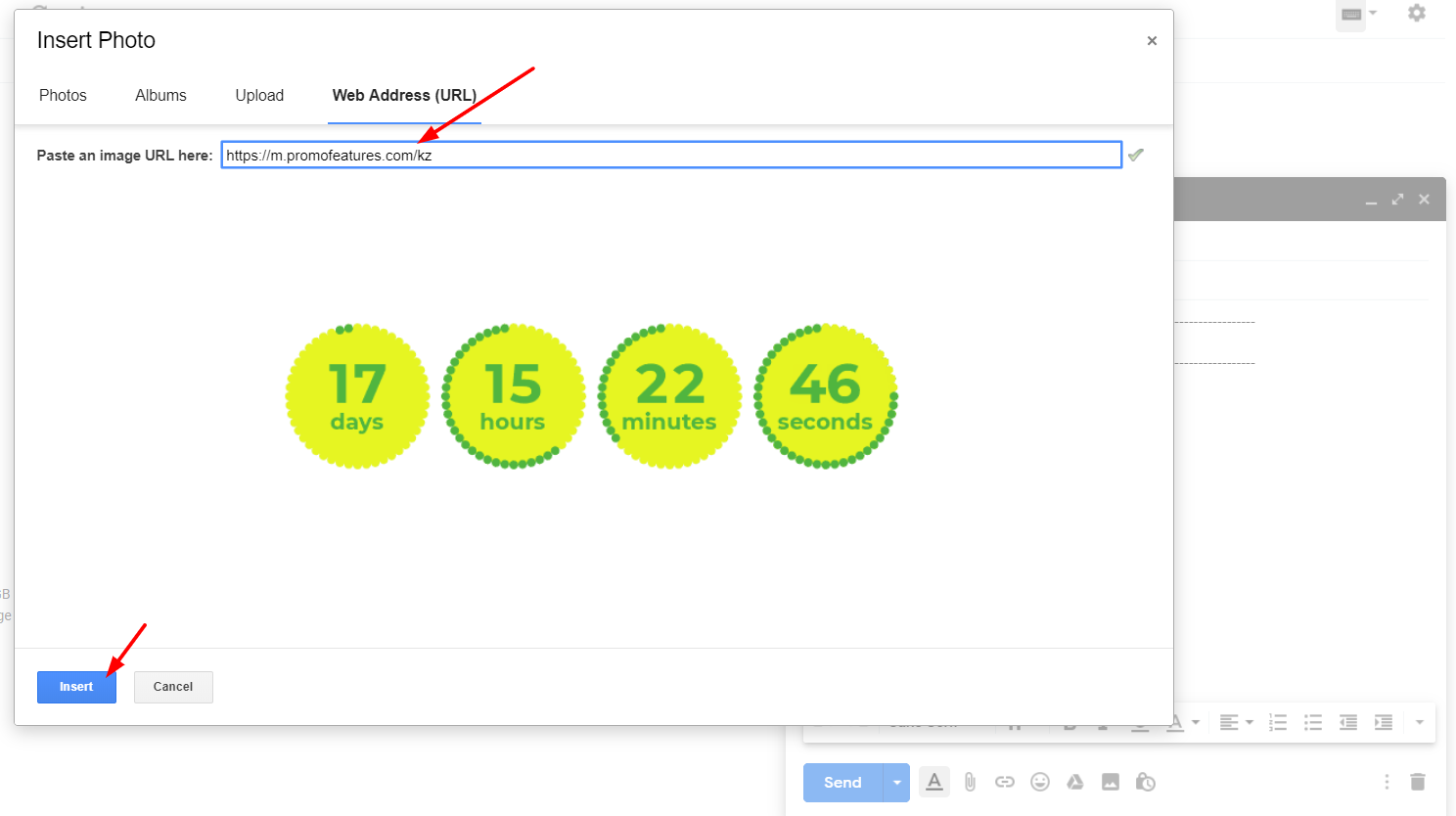
- Fai clic sul pulsante "Inserisci".
Dopo aver aggiunto il timer, puoi ridimensionarlo
Guarda il video: Come aggiungere countdown timer in Gmail?



Comments

Jelte Zijsling December 3, 2021
when I copy the link in Gmail it will count with the right time. But when I sent it to another mailaddress and the mail will be opened it starts with the wrong time (time of save). Do I do something wrong?
PromoFeatures December 3, 2021
Hi Jelte, It looks like your timer was cached, as if you saved it to your computer as a gif image and then uploaded it to a email letter. The timer will work correctly only if you add it via the "Web Address (URL)" field, in this case the timer will be loaded from our server and display the correct time. You can also forward this email letter to our mail support@promofeatures.com for an accurate analysis.
Katie Nguyen July 11, 2021
Hello, is the countdown timer will be counted base on real-time to the date of the event? or it'll be counted by the date of open email
PromoFeatures July 12, 2021
Timers for Gmail will only work until the end date (when creating a timer, you need to specify the date and time when the countdown timer will stop) in real time. We also support such a function, in which the timer is triggered by the date the message was opened, this type of timer is called transactional. Unfortunately, Gmail does not support transaction timers.
Francis Welch August 17, 2019
Thank you, your post is very useful. How to add any html to gmail, not just countdown counters?
PromoFeatures August 17, 2019
You can open html in a browser and copy the whole page and paste it into the editor, but we recommend using Chrome browser extensions called "HTML Inserter for Gmail" or "Insert Text HTML Snippets in Gmail".
To leave a comment, please log in.