Blog
Hinzufügen von Countdown-Timern in der MailChimp-Kampagne.
Mailchimp ist ein praktischer E-Mail-Dienst, mit dem Sie gleichzeitig mit einer großen Anzahl von Benutzern arbeiten können. Damit können Sie verschiedene Mail-Operationen durchführen sowie eine Benutzerbasis aufbauen.
Die Entwickler haben all diese Funktionen nicht zufällig in ihre Software aufgenommen. Um im Bereich des Internetverkaufs tätig zu sein, müssen Sie die Dynamik von Verkäufen und Marktsegmenten überwachen. Diese Indikatoren geben Aufschluss über die Gesamtnachfrage und die Richtung der Verkaufsstellen nach Region zu einem bestimmten Zeitpunkt.
Um einen Countdown-Zähler in Ihrem MailChimp hinzuzufügen, müssen Sie:
-
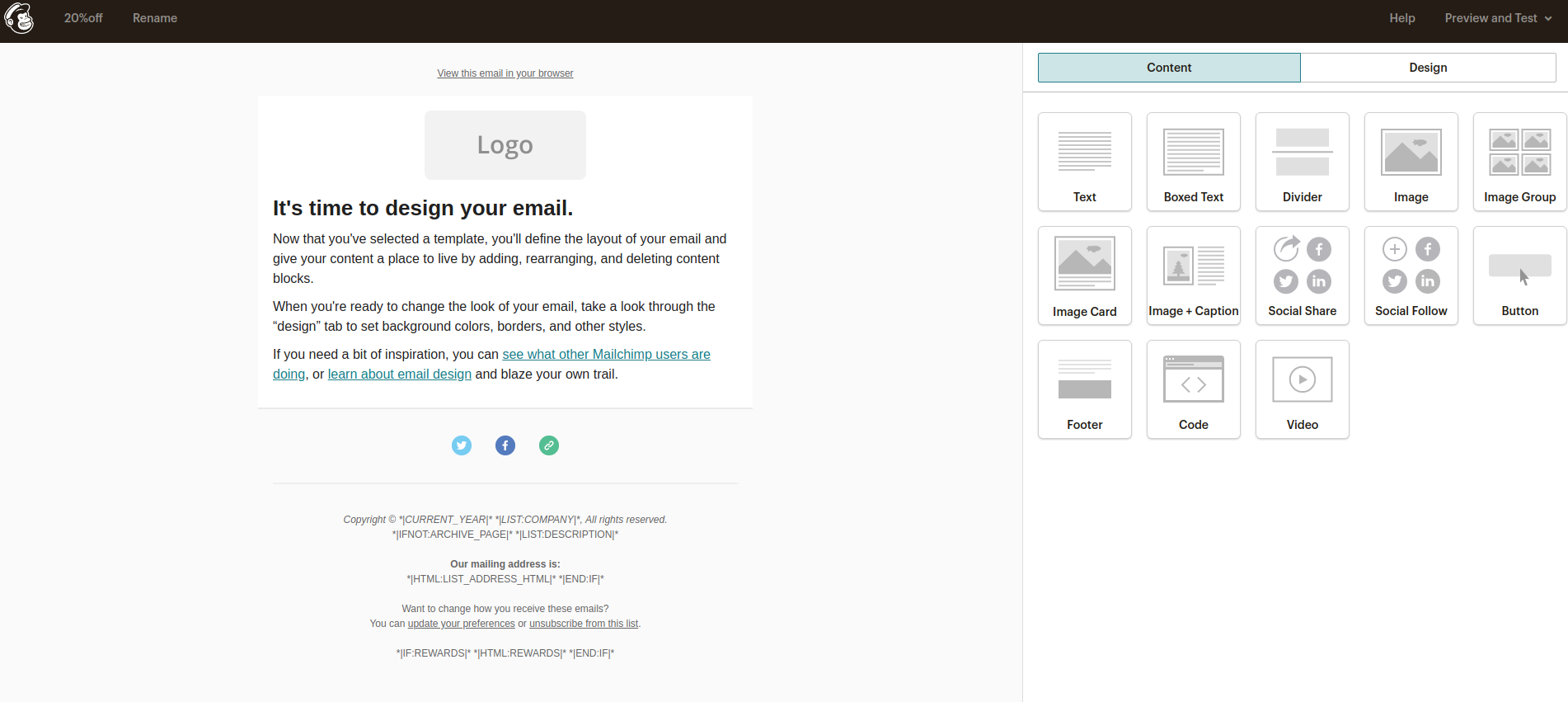
Gehen Sie zum Vorlagen-Manager.
-
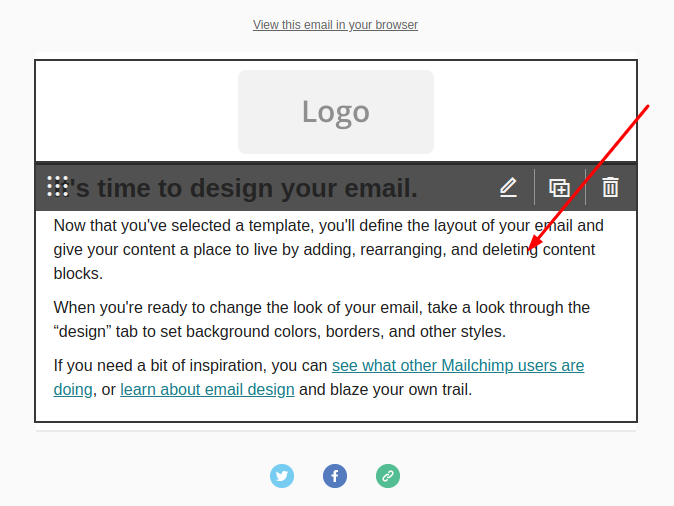
Klicken Sie auf den Bereich des bearbeiteten Briefes.
-
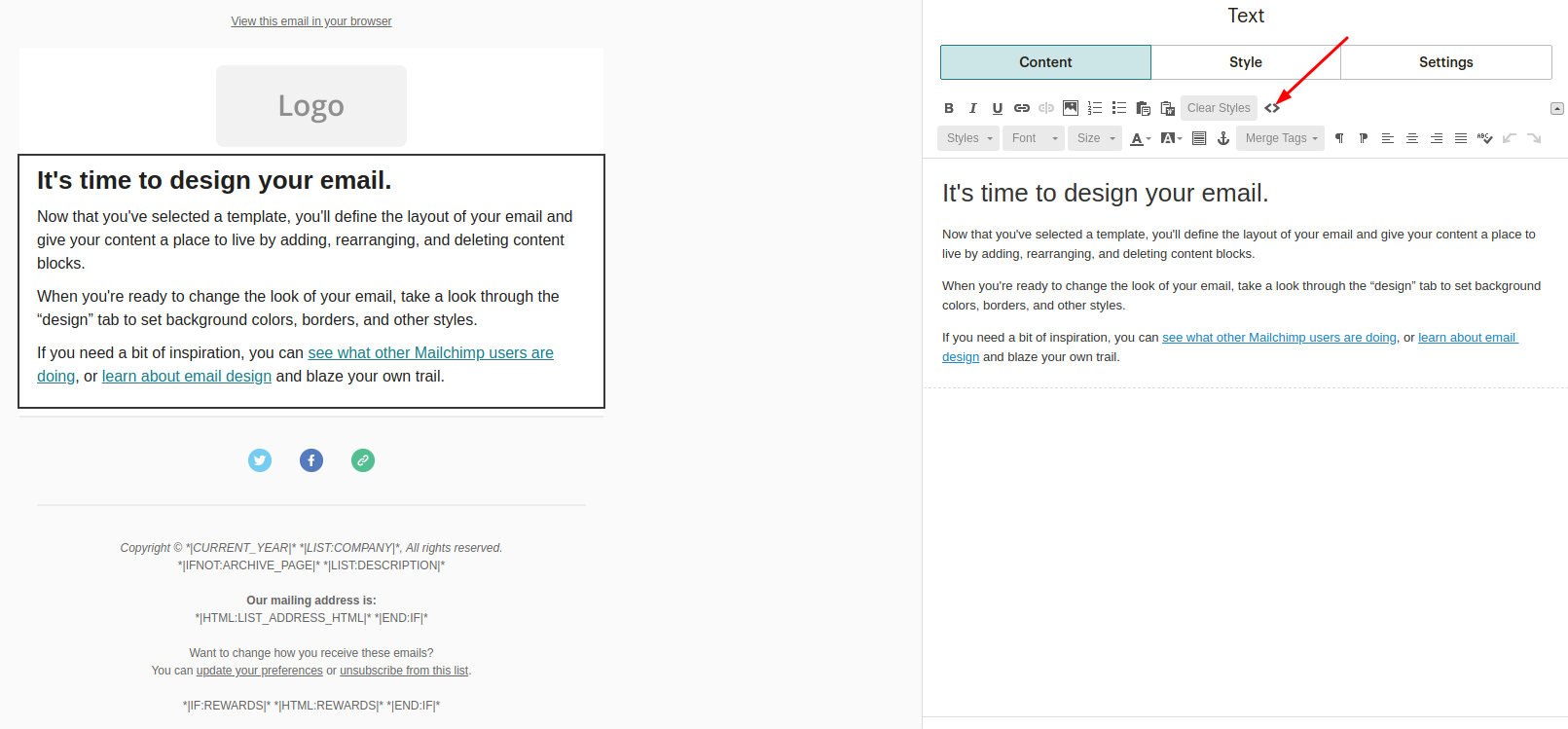
Klicken Sie im rechten Menü auf "Quelle".
-
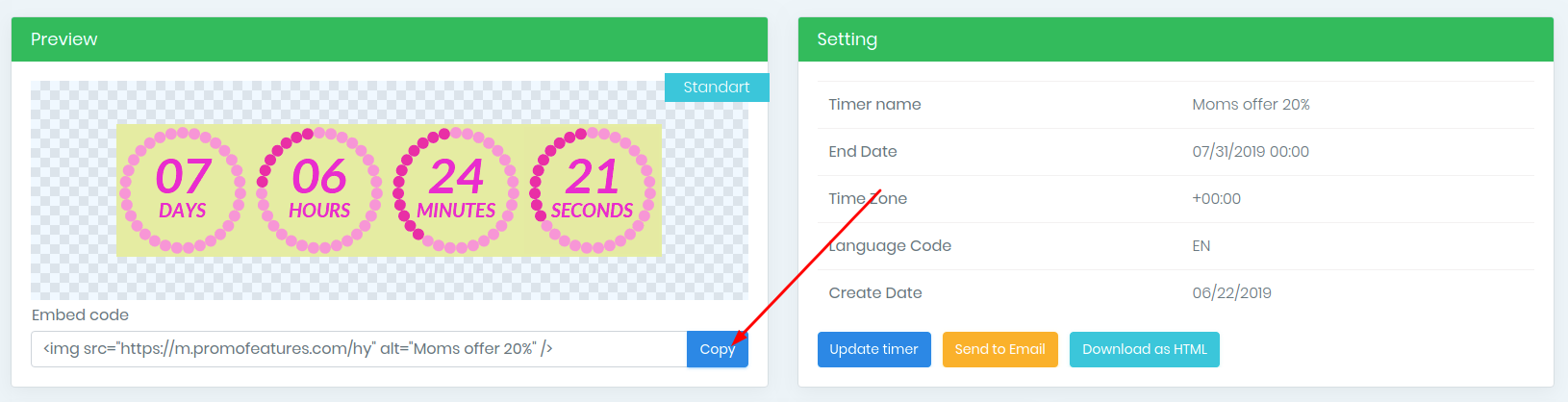
Kopieren Sie den Einbettungscode des Zählers.
-
Wählen Sie eine Stelle im Editor aus und fügen Sie den kopierten Code ein.

- Klicken Sie auf die Schaltfläche "Speichern und Beenden".
Video ansehen: Hinzufügen von Countdown-Timern in der MailChimp-Kampagne.




Comments

PromoFeatures May 24, 2020
id in the transaction timer must be a unique string or number for each email, there is a "merge tag" in the mailchimp see here , for example, we can take such a tag *| EMAIL |* and set it to the id of the timer ?id=*| EMAIL |*
Joel Bates May 26, 2020
Thank you very much!!! The timer started to display the time correctly.
PromoFeatures July 28, 2019
It is necessary to make sure that the width of the counter does not exceed the width of the email letter. This can be done with css code. You indicate the counter maximum width and width 100%. For example style = "max-width: 500px; width: 100%;"
PromoFeatures July 29, 2019
In the embedded code of the counter. For example, the width of the counter is 400px and the initial width of the email letter is 600px, as you can see, the width of the letter is greater than the width of the counter; therefore, add <img src = "_counter_link_" style = "max-width: 400px; width: 100%;" />. If the width of the counter is greater than the width of the letter, then just write in the code <img src = "_counter_link_" style = "width: 100%;" />

To leave a comment, please log in.