Blog
Aggiungere countdown timer nella campagna MailChimp.
Mailchimp è un comodo servizio email che permette di lavorare con un gran numero di utenti contemporaneamente. Con esso puoi eseguire varie operazioni di posta e creare una base di utenti.
Gli sviluppatori hanno incluso tutte queste funzionalità nel loro software non a caso. Per lavorare nel campo delle vendite online, è necessario monitorare le dinamiche delle vendite e il segmento di mercato. Questi indicatori offrono l'opportunità di valutare la domanda complessiva e la direzione dei punti vendita per regione in un determinato momento.
Per aggiungere un countdown timer in MailChimp:
-
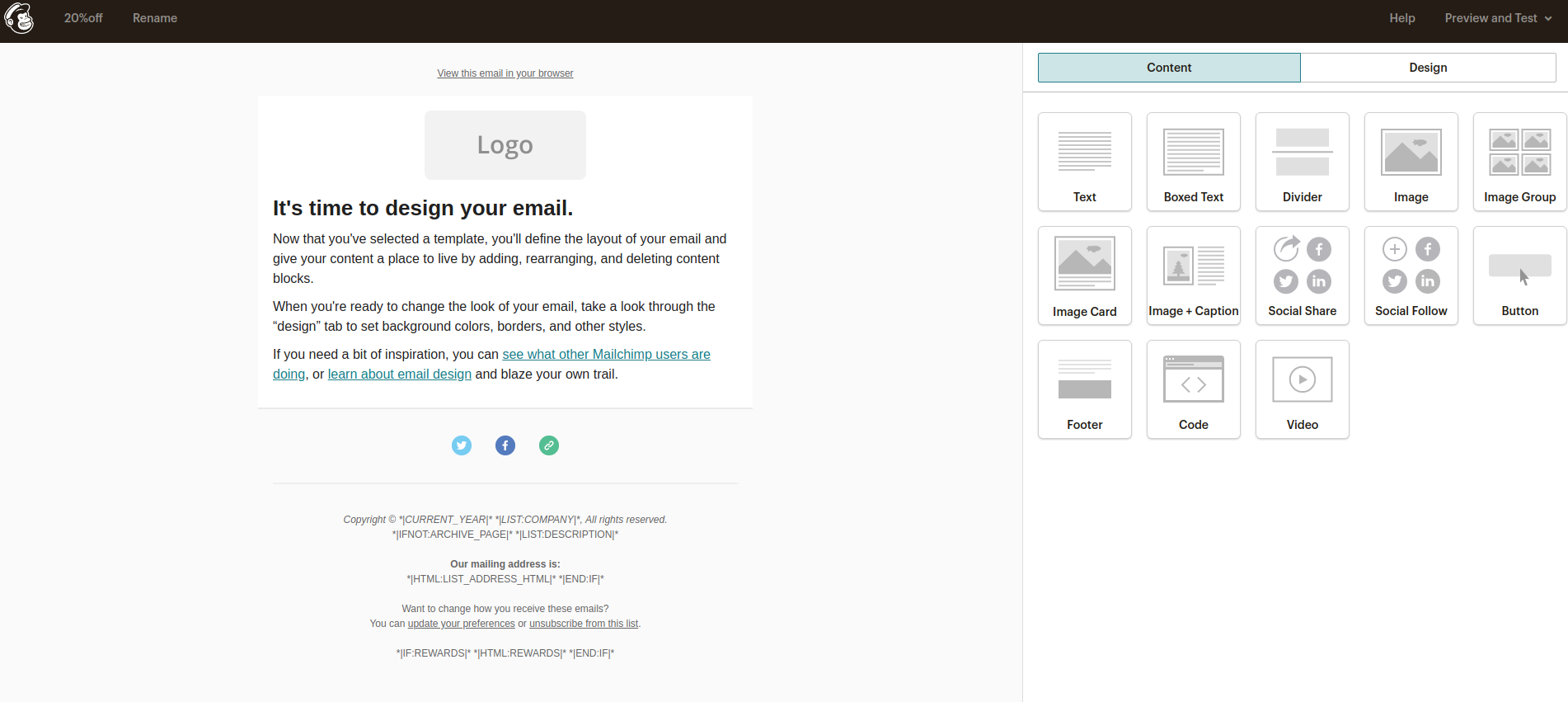
Vai al gestore dei template.
-
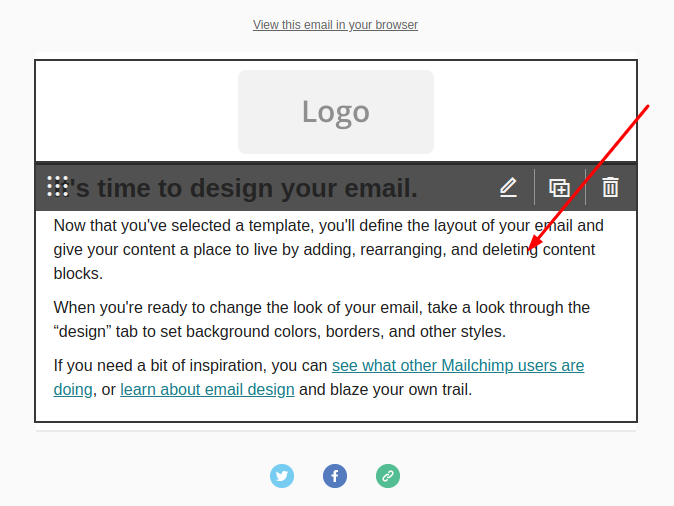
Fai clic sull'area della lettera modificata.
-
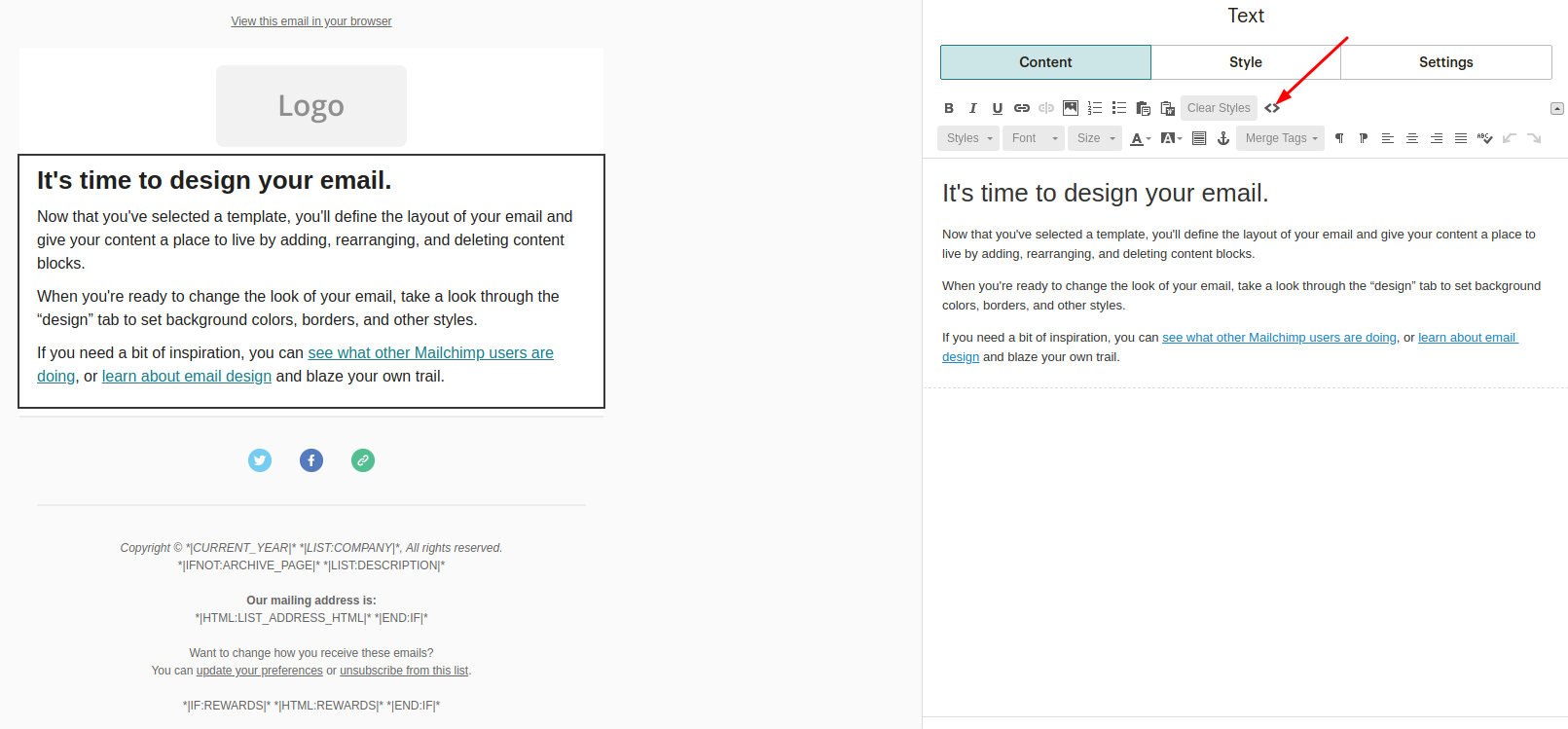
Nel menu a destra, fai clic su "Sorgente".
-
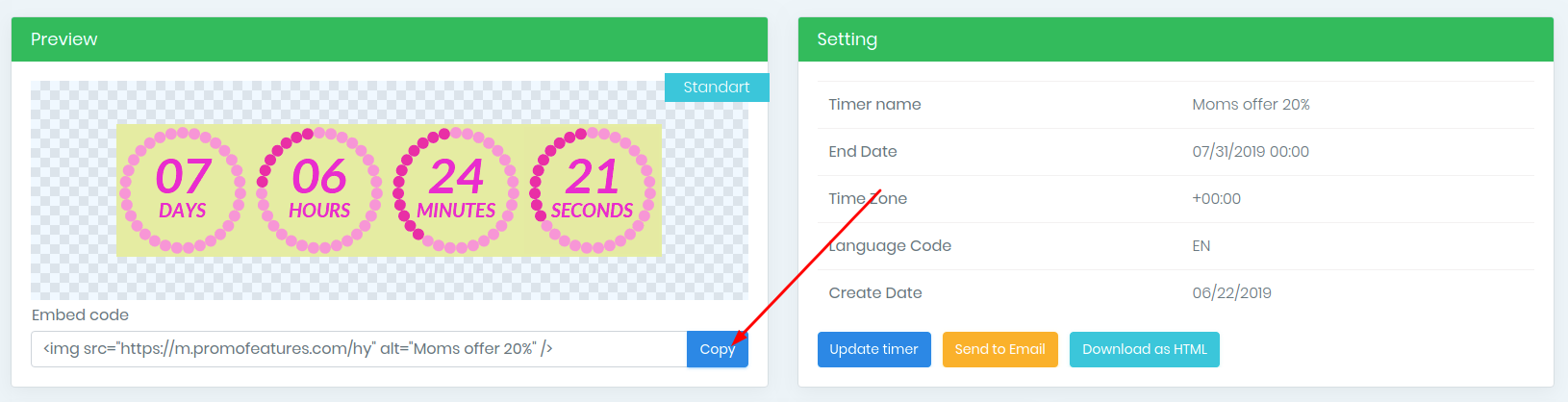
Copia il codice embed del timer.
-
Seleziona un punto nell'editor e incolla il codice copiato.

- Fai clic sul pulsante "Salva ed esci".
Guarda il video: Aggiungere countdown timer nella campagna MailChimp.




Comments

PromoFeatures May 24, 2020
id in the transaction timer must be a unique string or number for each email, there is a "merge tag" in the mailchimp see here , for example, we can take such a tag *| EMAIL |* and set it to the id of the timer ?id=*| EMAIL |*
Joel Bates May 26, 2020
Thank you very much!!! The timer started to display the time correctly.
PromoFeatures July 28, 2019
It is necessary to make sure that the width of the counter does not exceed the width of the email letter. This can be done with css code. You indicate the counter maximum width and width 100%. For example style = "max-width: 500px; width: 100%;"
PromoFeatures July 29, 2019
In the embedded code of the counter. For example, the width of the counter is 400px and the initial width of the email letter is 600px, as you can see, the width of the letter is greater than the width of the counter; therefore, add <img src = "_counter_link_" style = "max-width: 400px; width: 100%;" />. If the width of the counter is greater than the width of the letter, then just write in the code <img src = "_counter_link_" style = "width: 100%;" />

To leave a comment, please log in.